> For the complete documentation index, see [llms.txt](https://athome-1.gitbook.io/athome-docs/llms.txt). Markdown versions of documentation pages are available by appending `.md` to page URLs; this page is available as [Markdown](https://athome-1.gitbook.io/athome-docs/tools/tabs/project-tasks.md).
# Project tasks
You can create tasks (with no limit on the number) to schedule and track your projects. You can add tasks, reminders, documents, etc.
{% hint style="success" icon="clone" %}
You can use templates to add a new project task.
{% endhint %}
Each project task has several tabs:
* Project task
* Project tasks (sub task)
* Task team
* Documents
* Tickets
* Notes
* Historical
* All
***
## Project task
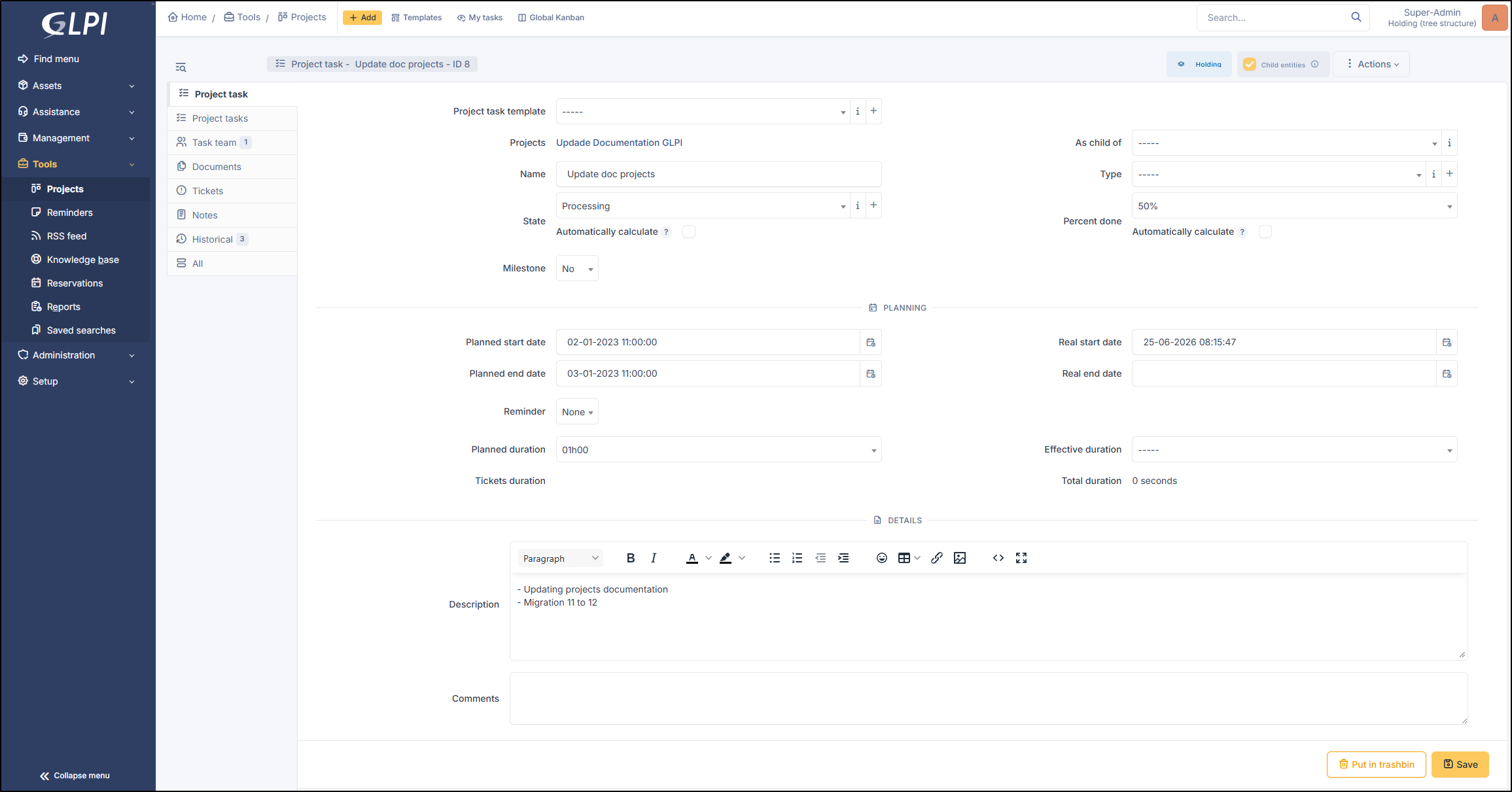
* To **add** a project task, select the project in question and, from the **Project tasks** tab, click **`Add a task`**.
Three inserts are then available.
* Global information
* Planning
* Details
View project task
### Global information
Here you will find the administrative information for the project:
* **Template**
* **Main project**
* **Name**
* **Type:** you can manage type in **`Setup`** > **`Dropdowns`** > **`Project tasks types`**
* **As a child** **of** task project: elect another task already created for the project.
* **Status** (closed, new, processing)
* You can check the **automatically calculate** box so that progress calculations are performed automatically. The status is calculated based on the task's percentage of completion. You must define these in the general project configuration.
* **Percent done** (this is for informational purposes only)
* When automatic computation is active, percentage is computed based on the average of all child task percent done.
* **Milestone** : The Milestone checkbox is used to mark a **key checkpoint** or **major event** in your project's lifecycle. Unlike a standard task representing work to be done (involving duration, labor hours, etc.), it signifies the **completion of a phase** or a **significant decision point** (e.g., "Approval of specifications," "Completion of development," or "Official launch"). Checking this box indicates that the task is **not a time-consuming activity,** but rather a specific target to be reached by a certain time. Certain fields in the Schedule tab will not be displayed if this box is checked. This option will display this icon :signs-post: on the Kanban view.
### Planning
This section makes it possible to track and coordinate tasks that are planned versus those actually completed.
* Planned start date
* Planned end date
* Real start date
* Real end date
* Reminder: Add a reminder ranging from 0 minutes to 1 year
* Planned duration
* Evective duration
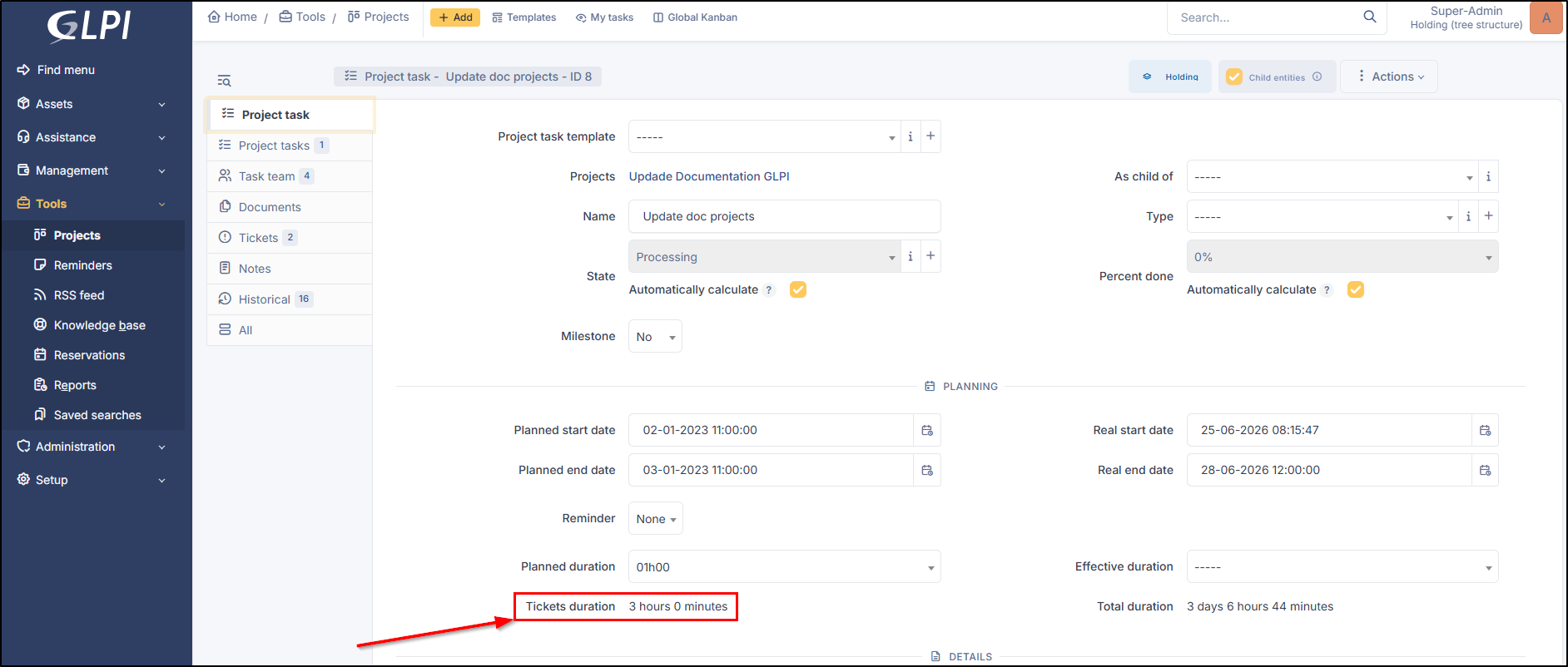
* Tickets dauration
* Total duration
{% hint style="info" icon="alarm-exclamation" %}
**Reminder**
A new automatic action is available to trigger reminder notifications: **`projecttaskreminder`** (**`Setup`** > **`Automatic actions`**)
The process works as follows: when the scheduled end date approaches and a reminder is configured, the `projecttaskreminder` cron job triggers and sends the task-related reminder notification to all users or groups associated with that task.
{% endhint %}
#### Tags and notifications
New placeholders (`##project.*##`) are now available for all **Project Task** type notifications. They allow for the direct inclusion of information from the parent project (name, code, URL, description, priority, status, type, and planned/actual dates).
Tags notifications
{% hint style="success" icon="lightbulb-on" %}
All placeholders are available under **`Setup`** > **`Notifications`** > **`Notification templates`** > **`Project Tasks`** > **`Template translation`** > **`View list of available tags`**
{% endhint %}
***
### Details
With this section, you can add a description as well as a comment.
***
## Project tasks
You can create another task from this tab. It will be linked as a child of the main task.
Click on **`Create a sub task form this task of project`**.The informations of this task are the same as that indicated above.
***
## Task Team
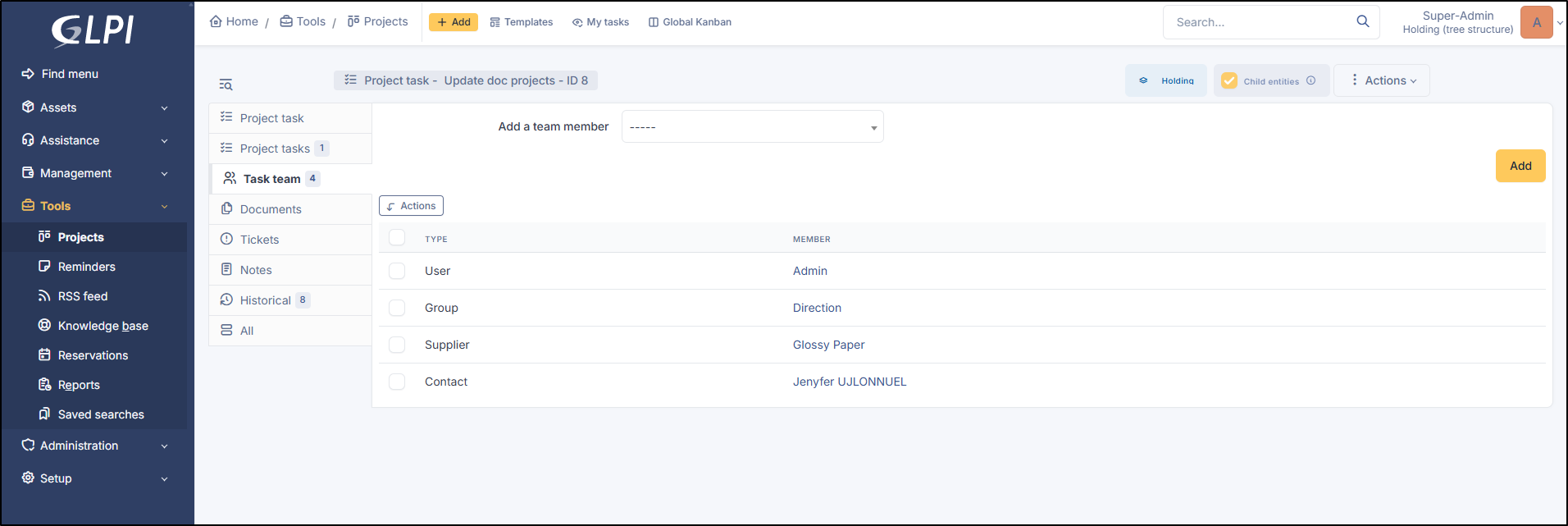
You can add members to the project task.
Task team tab
\
It is possible to add:
* Contacts
* Groups
* Suppliers
* Users
{% hint style="info" %}
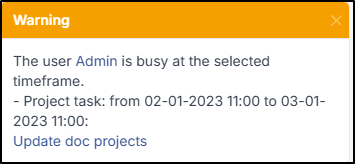
Si le membre sélectionné est indisponible lors de la période planifiée, un message d'information vous préviendra de la superposition des plannings
{% endhint %}
***
## Documents
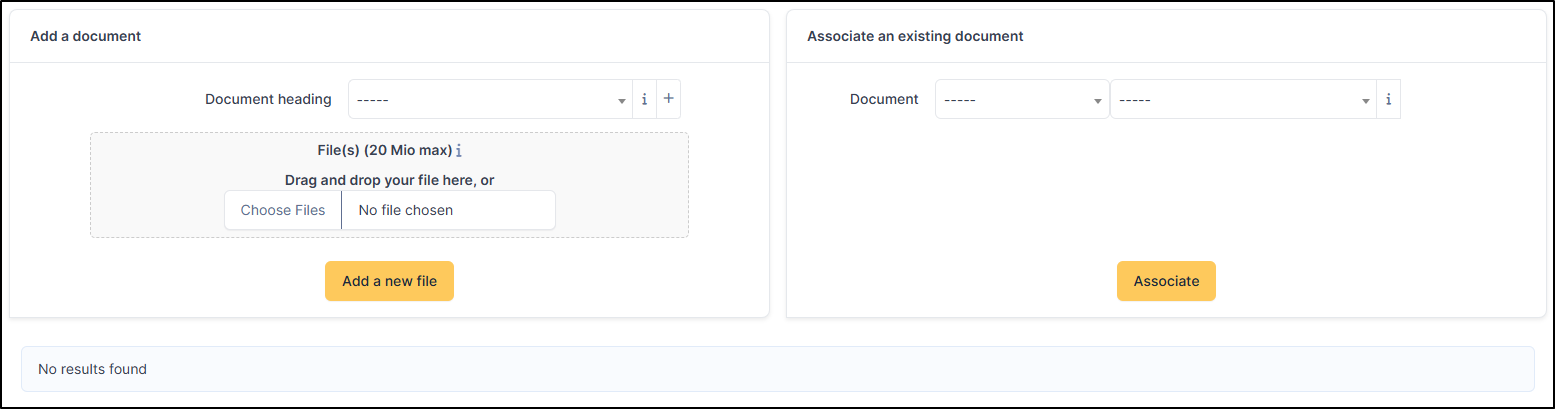
You can add a document from your computer or one that is already in GLPI.
Documents tab
***
## Tickets
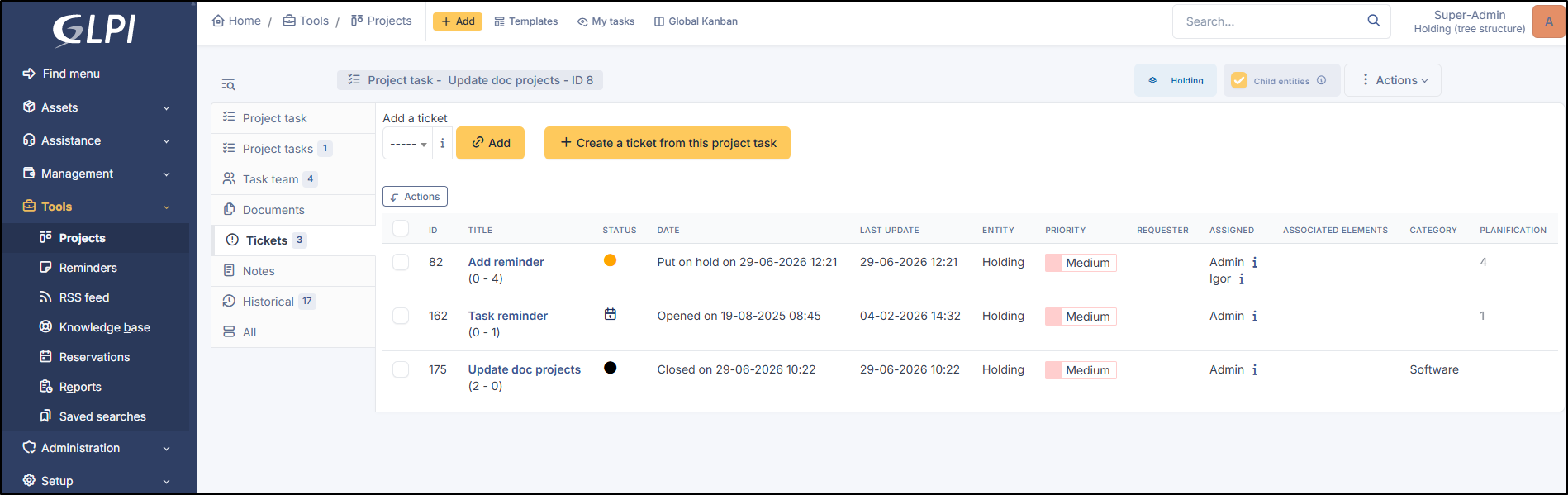
You can add tickets or create new ones from this tab.
On the main project task page, you can view the total **tickets duration**.
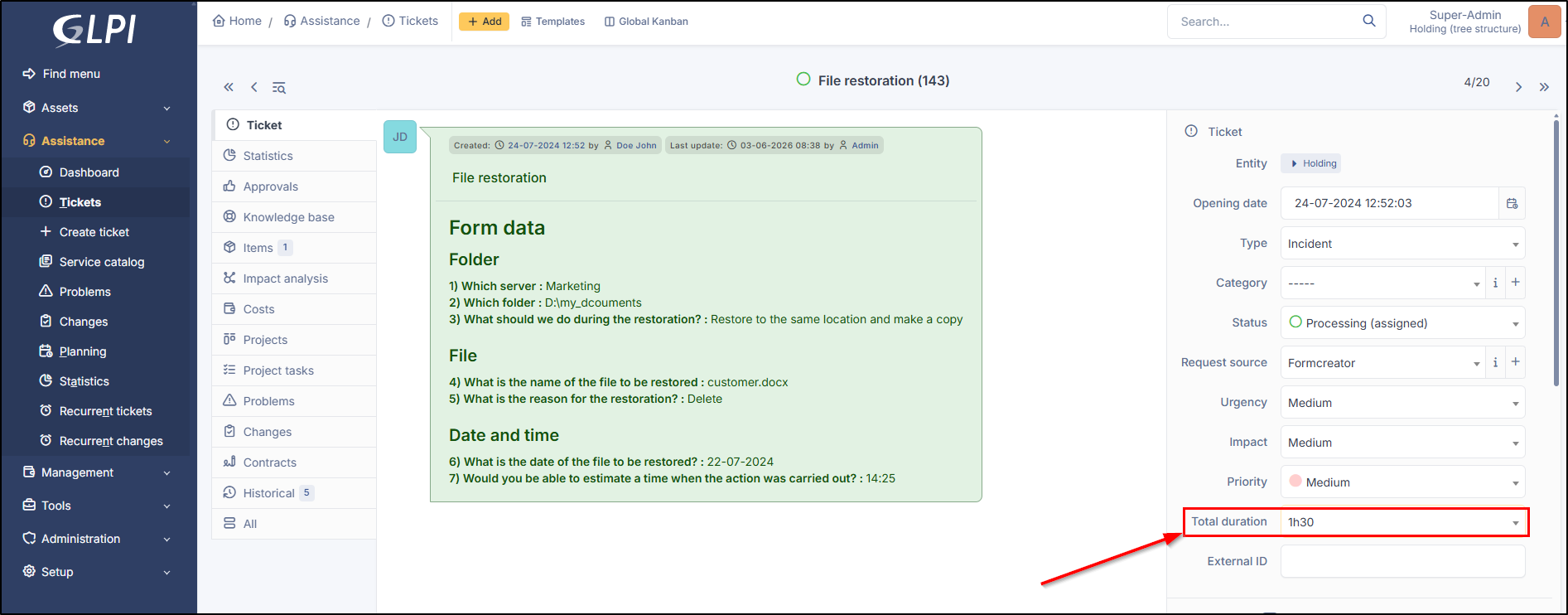
For this duration to be included, it must be **specified in the ticket duration** option for the ticket in question.
***
## Notes
Note lets you add enriched text and attach a document.
Go to Notes
***
## History
The *History* tab is used to show any changes made to an item. The following information about the changes is available:
* ID of the change.
* Date and time the change was made.
* User who made the change. If this field is not filled, it means that the action was done automatically (For example: automatic inventory update).
* Field that was changed.
* Description of the change that was made.
The description of the change represents either the difference between the old and the new value (For example with location field: Change HQ to Remote Office A), or the explanation of the action which was carried out (For example: Uninstallation of a software: "Gimp 2.0").
{% hint style="info" %}
For dropdowns or objects with a parent/child relationship, the modification of a child will appear in the history of the parent element.
{% endhint %}
***
## All Information
For an item, all information is displayed on one page from the *All* tab. This shows all of the tabs of an object's form in one view, one below the other.

 {% endhint %}
***
## Documents
You can add a document from your computer or one that is already in GLPI.
{% endhint %}
***
## Documents
You can add a document from your computer or one that is already in GLPI.