> For the complete documentation index, see [llms.txt](https://athome-1.gitbook.io/athome-docs/llms.txt). Markdown versions of documentation pages are available by appending `.md` to page URLs; this page is available as [Markdown](https://athome-1.gitbook.io/athome-docs/tools/rssfeed.md).
# RSS feeds
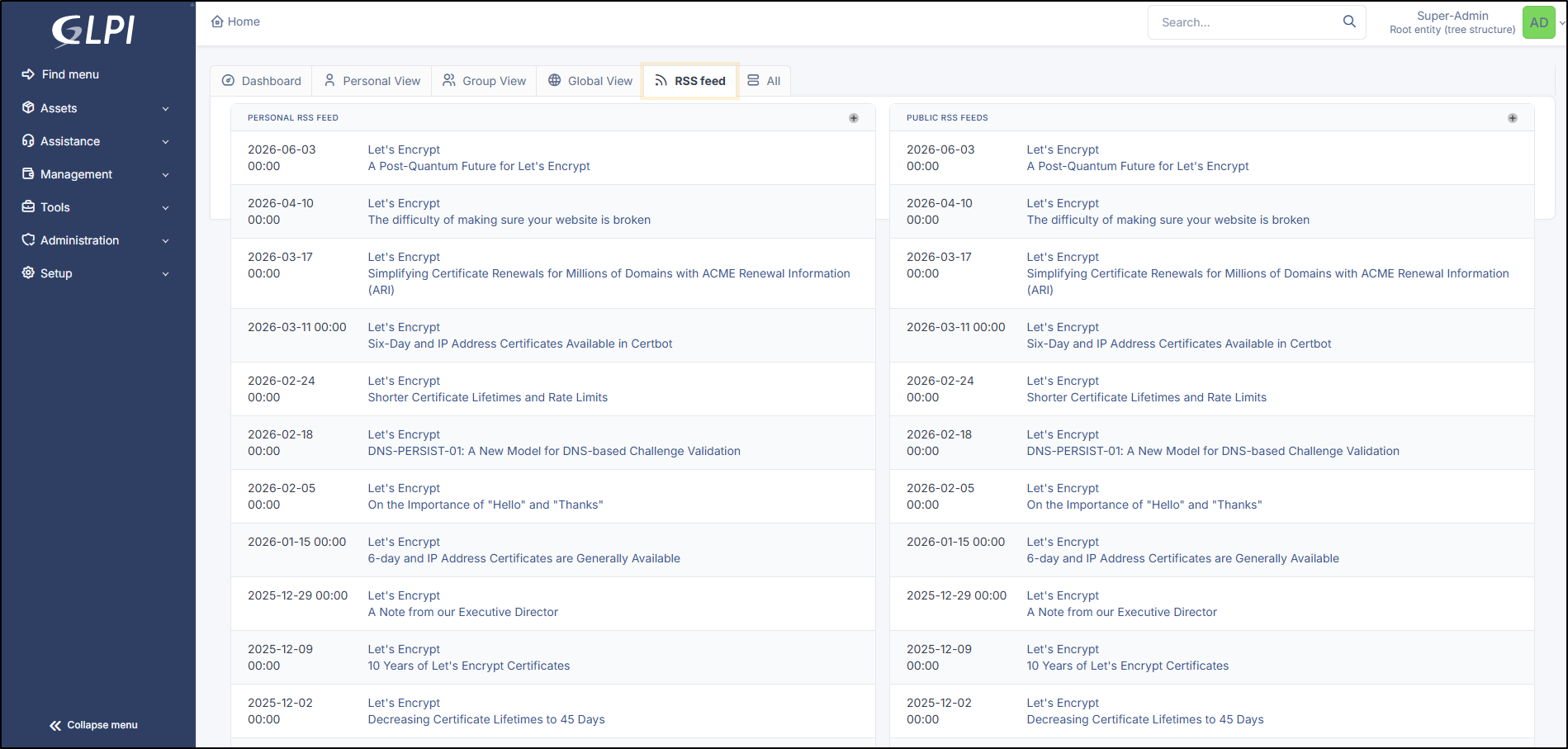
GLPI allows you to include RSS feeds on the tool's homepage.
Personnal view RSS
An RSS feed is, by default, personal and therefore only visible to its creator.
For an RSS feed to become public and visible to other users, targets must be added to it. A target is an entity, a group, a profile, or a user.
{% hint style="info" %}
A public RSS feed is visible to users associated with a profile if that profile has read permission for public RSS feeds.
{% endhint %}
***
## Adding Feeds
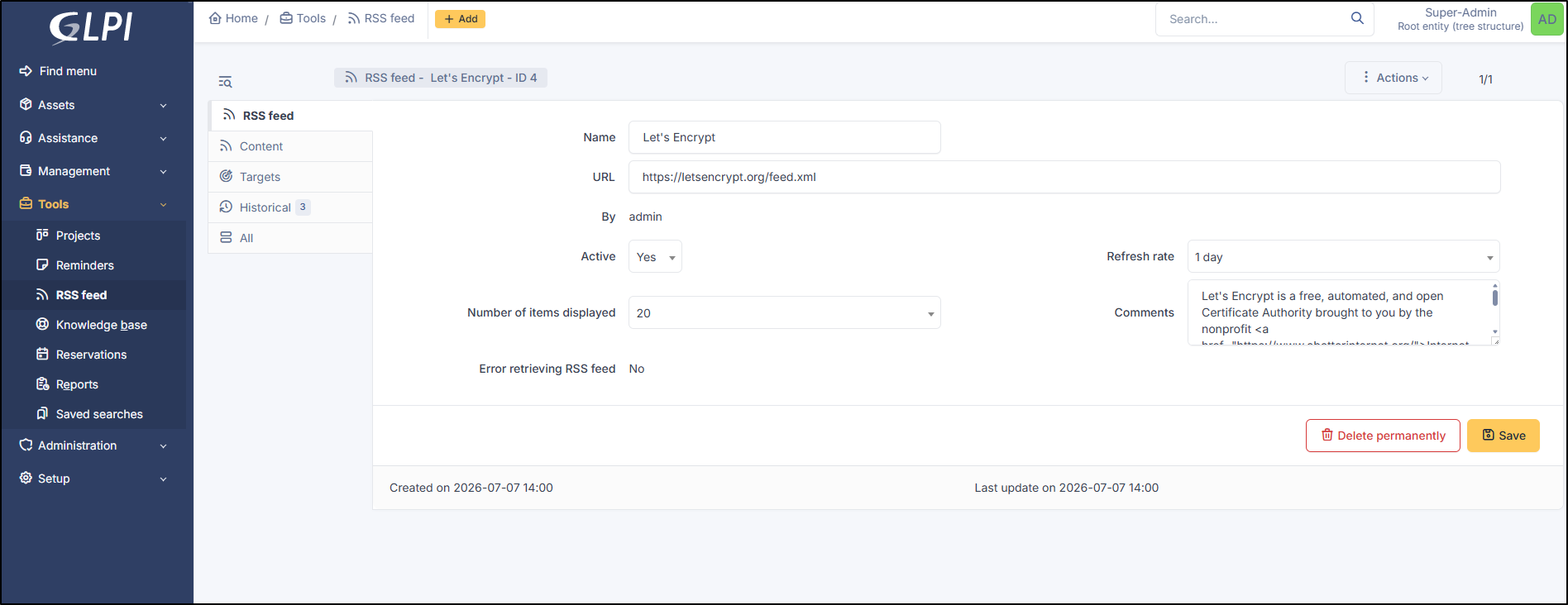
* To add an RSS feed, click **`+ Add`**
* Add the URL
* Mark your feed as active
* You can select a value in the **Number of items displayed** field
Add new RSS Feed
***
## Deleting Feeds
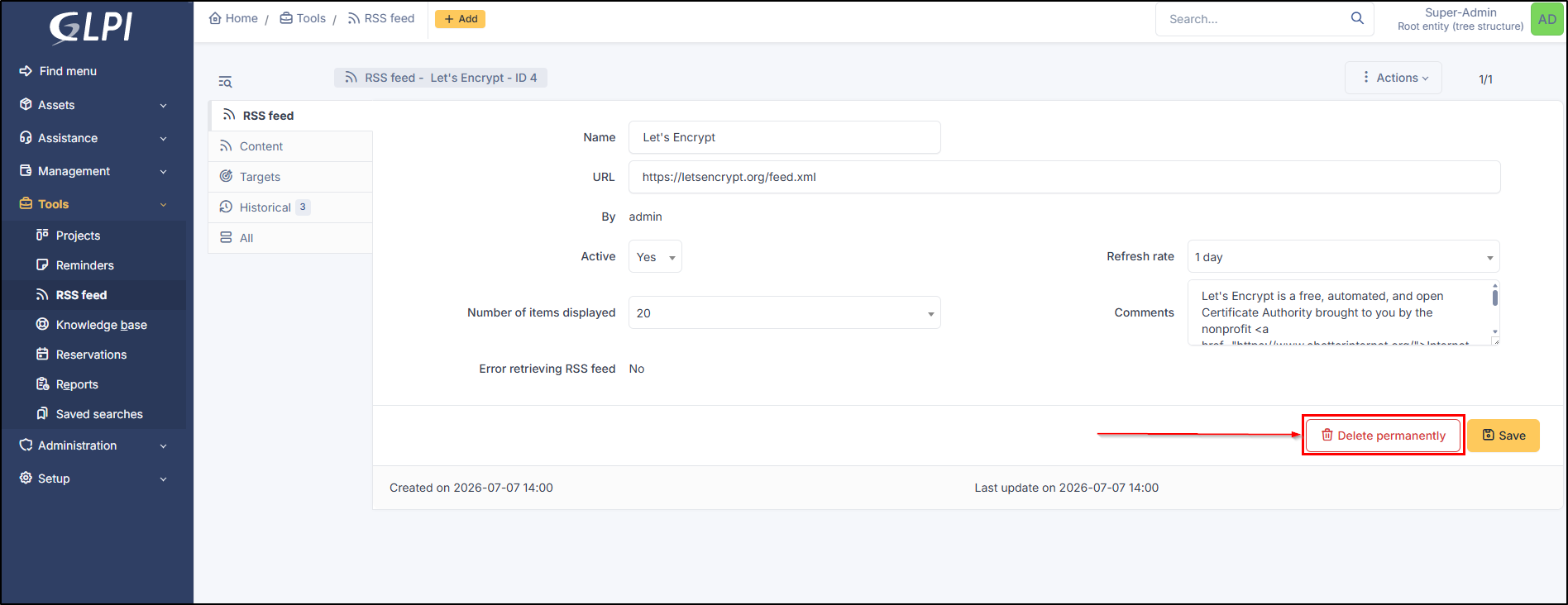
You can click **`Delete permanently`** from the feed in question or use the **mass action** to delete one or more feeds at the same time.
***
## Content
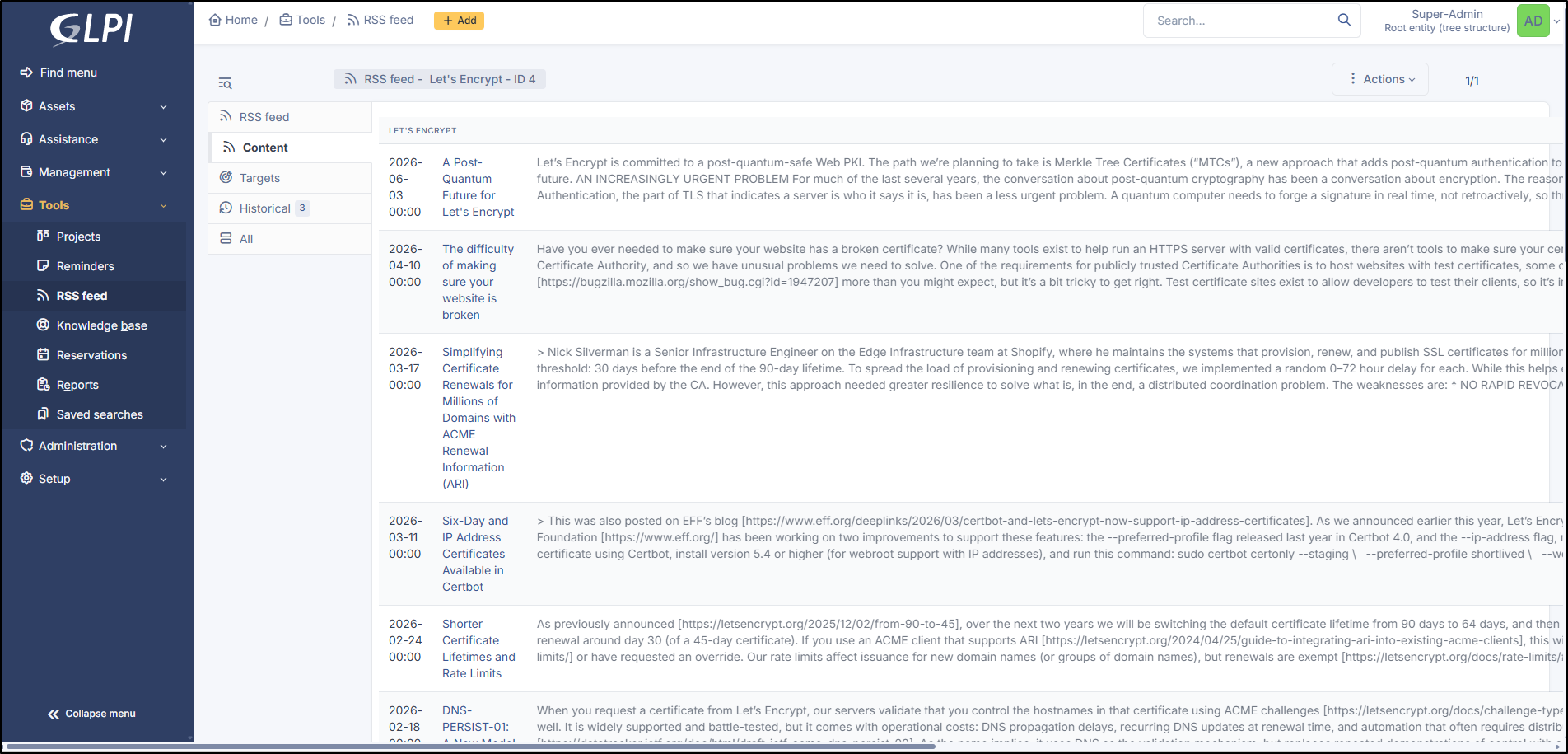
This tab allows you to view the number of items displayed; this content is what is shown on the homepage.
RSS content
***
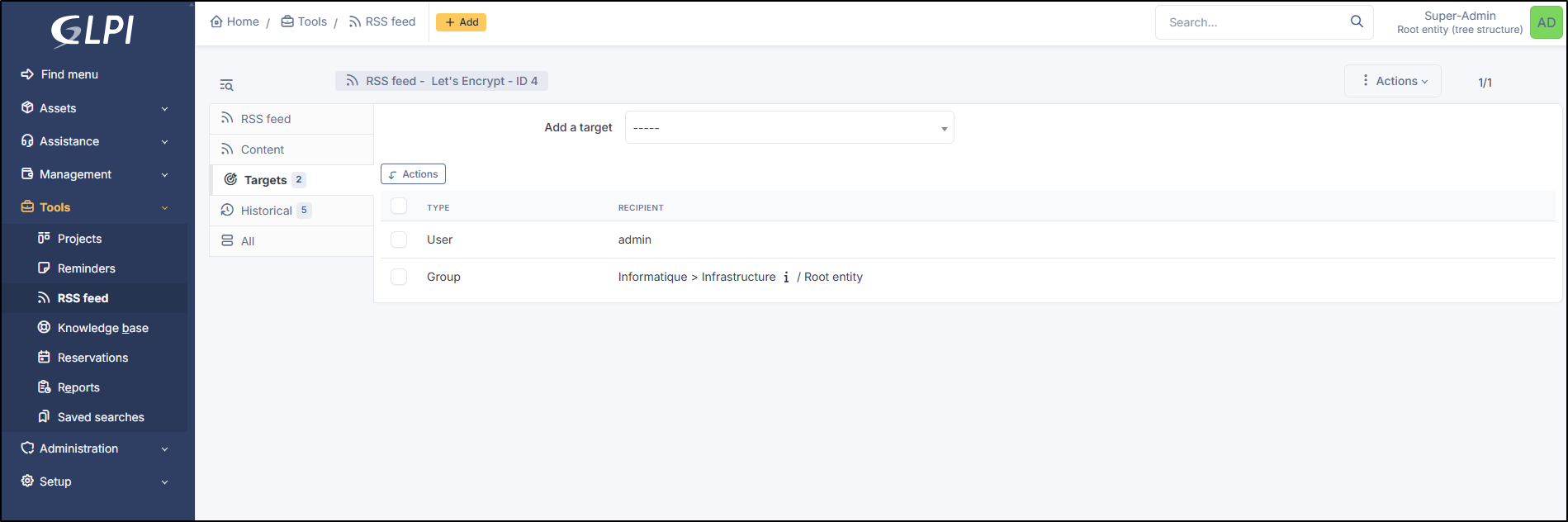
## Targets
This tab allows you to view and modify the list of targets for the RSS feed.
You can add entities, groups, profiles, and users.
Add taget
***
## History
The *History* tab is used to display all modifications made to an item. The following information about modifications is available:
* Modification ID.
* Date and time of the modification.
* User who made the modification. If this field is not populated, it means the action was performed automatically (e.g., automatic inventory update).
* Field that was modified.
* Description of the modification that was made.
The modification description represents either the difference between the old and new value (e.g., for the location field: Change from HQ to Remote Office A), or the explanation of the action that was performed (e.g., Software uninstallation: "Gimp 2.0").
{% hint style="info" %}
For dropdown lists or objects with a parent/child relationship, a child modification will appear in the parent item's history.
{% endhint %}
***
## All
For an item, all information is displayed on a single page from the *All* tab. This shows all the tabs of an object's form in a single view, one below the other.