> For the complete documentation index, see [llms.txt](https://athome-1.gitbook.io/athome-docs/llms.txt). Markdown versions of documentation pages are available by appending `.md` to page URLs; this page is available as [Markdown](https://athome-1.gitbook.io/athome-docs/setup/crontasks.md).
# Automatic actions
GLPI has multiple automatic actions (also referred to as crontasks) that are periodically scheduled jobs. These actions can be configured to run at a specific frequency and run in either GLPI or CLI mode.
In GLPI mode, the actions are started occasionally when users navigate GLPI. In CLI mode, the actions are started in their own session via cron, Scheduled Tasks, or some other external task scheduler. You may configure some actions to run in GLPI mode and others to be CLI. Some actions may support only one of the modes.
***
## Configure CLI mode
To run CLI mode tasks, you will need to configure your external task scheduler to call GLPI `front/cron.php` file periodically. It is recommended to have it run every minute to ensure that actions that are ready to run, get ran as soon as possible.
For Linux/MacOS, you should add the following to the web server's user's (www-data, apache, etc) crontab:
```
* * * * * php GLPI/front/cron.php
```
You will need to replace `GLPI` with the path to your GLPI folder. You may also need to replace `php` with the full path to your php binary if it is not in the PATH.
***
## Force execution of action from CLI
To execute a specific action from the command-line, you can run (for mailgate action):
```
php GLPI/front/cron.php --force mailgate
```
You will need to replace `GLPI` with the path to your GLPI folder.
Forcing the action to run will ensure it is run even if it is not scheduled to run again yet.
***
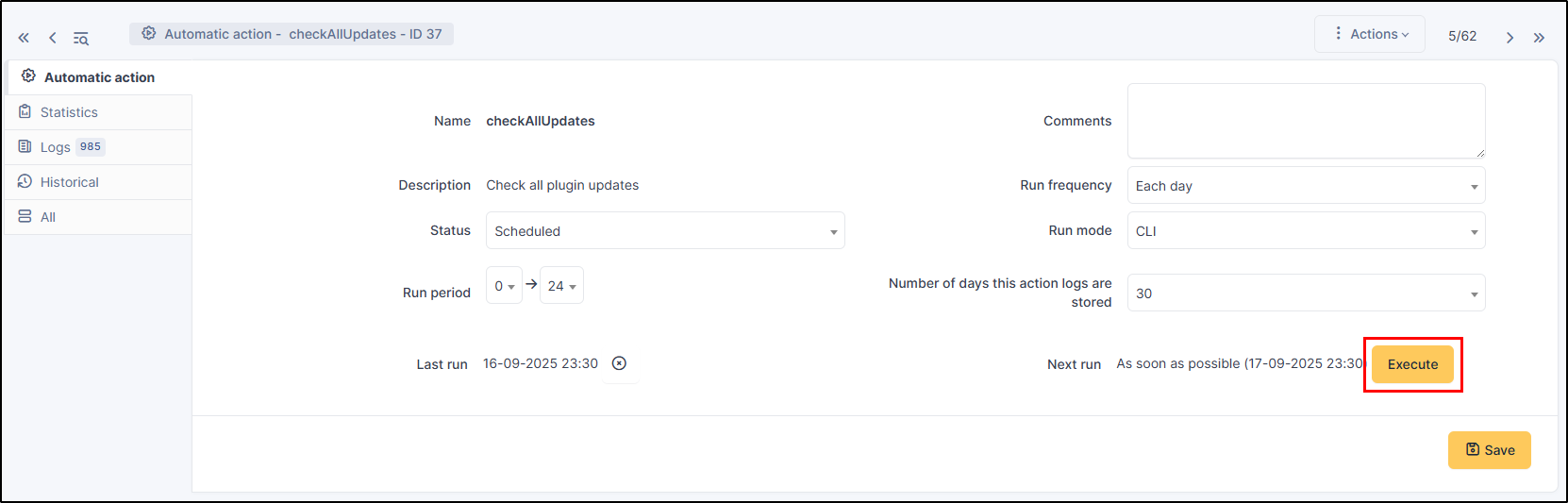
## Force the execution of an action from the GUI
***
## The different tabs
### Automatic action
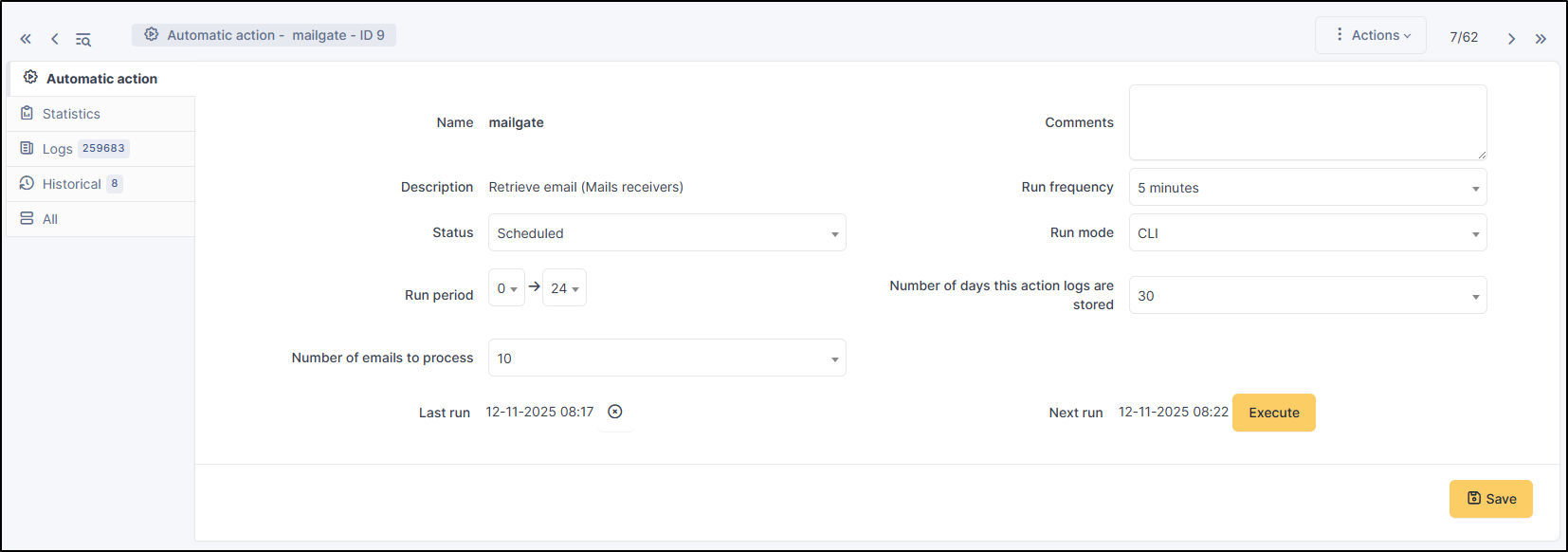
For each action, it is possible to configure:
* Run frequency
* Status: Allows you to disable the action if needed
* Run mode: **CLI** or **GLPI** (we recommend the CLI option, which is based on the instance's cron job. In GLPI mode, automatic actions are only triggered when the user is logged in)
* Run period: Allows you to disable certain actions at night for example
* Number of days this action's logs are stored: from 0 to 360 or infinite
The interface also allows you to reset the execution date and to manually force the execution manually.
Some automatic actions can have particular parameters, such as the maximum number of emails to be sent each time for the **`mailqueue`** action. Also plugins can define their own automatic actions.
***
### Statistics
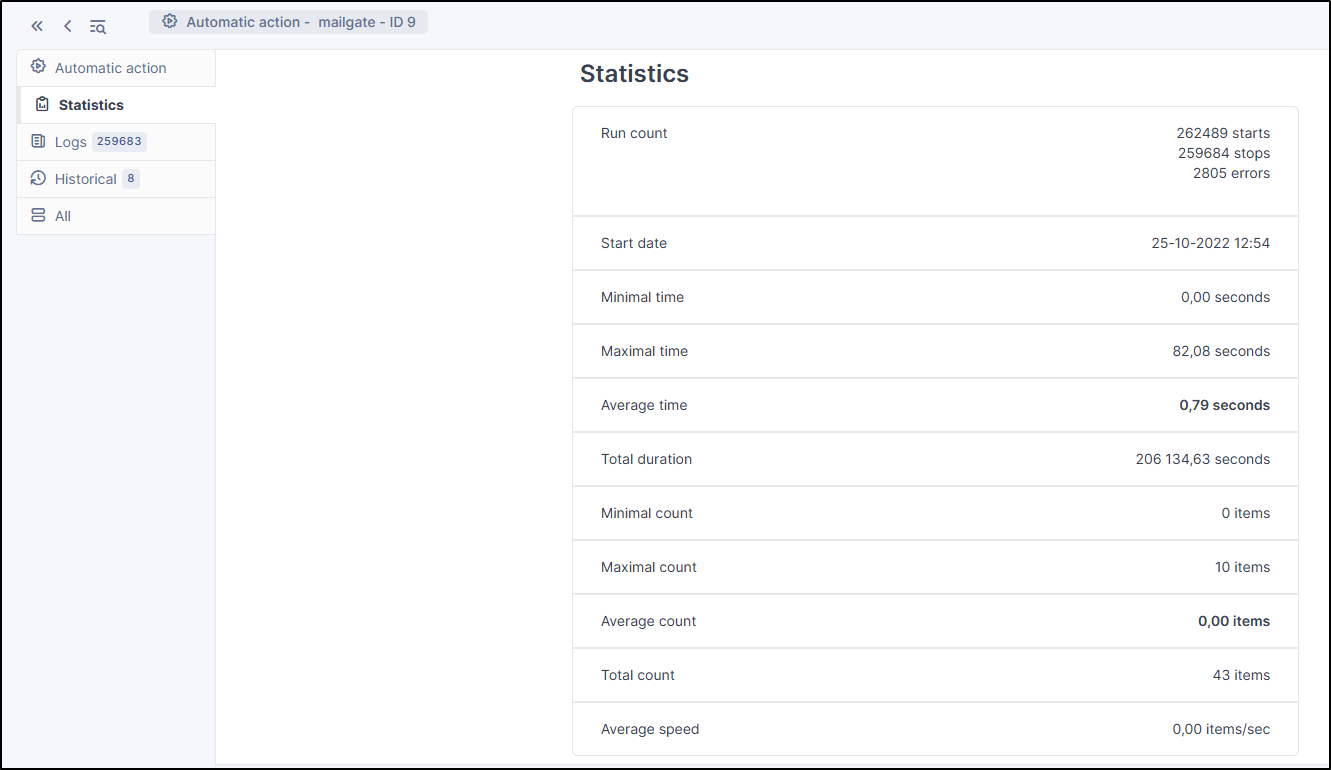
Displays information about the execution of this task (number of executions, start date, minimum, maximum, average and total durations).
***
### Logs
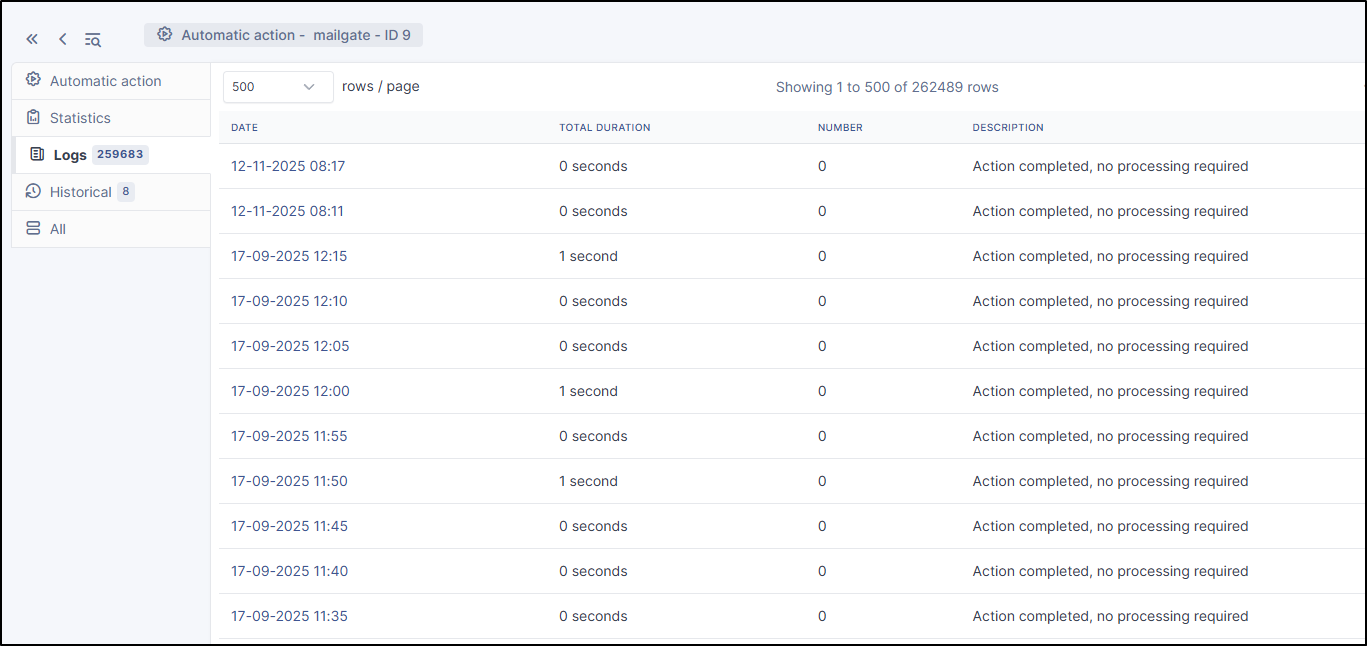
Lists the last executions according to the parameter defined in the *Automatic action* tab (see above). A link on the execution date allows to have the details of a specific execution.